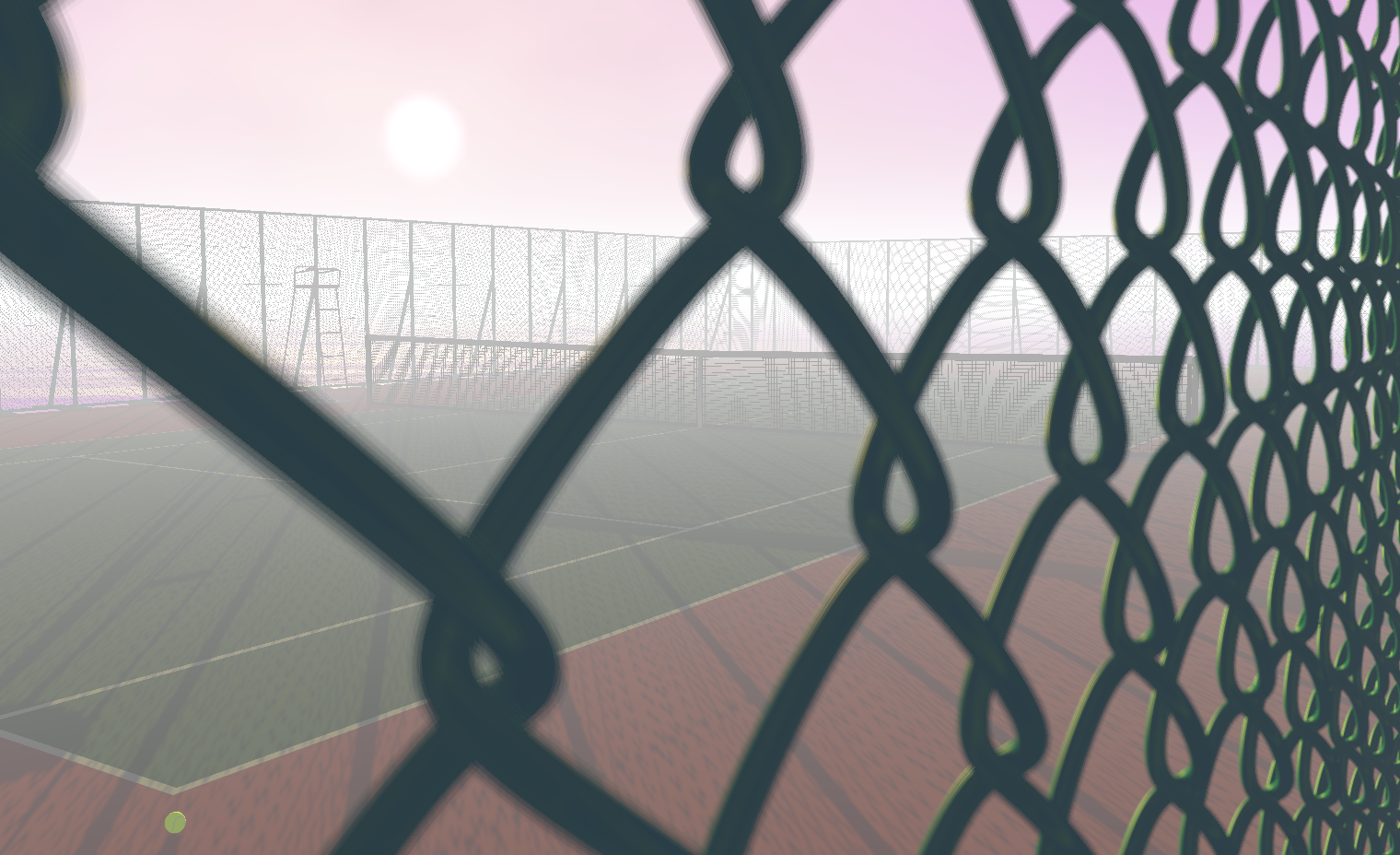
POV-Ray .pov and .inc files can be loaded directly in your browser, converted into an interactive 3D view, and inspected from angles that are difficult to understand from a single rendered image. You can also compare display options such as fog, reflections, and depth-of-field blur, then export the converted scene as viewer.html.
This converter does not support every POV-Ray syntax feature. Unsupported elements and missing files are listed in the conversion report.
How to Use
- Load files and convert them to 3D: Drop a
.povfile together with referenced.incfiles, images, fonts, and other required assets into the left panel, or choose them with the file picker. Select the main file and press Convert to 3D. A newly loaded file set replaces the previous one. - Inspect individual parts and macros: Standalone
.incfiles can also be selected. If a file defines macros, choose the macro and enter its arguments to preview that component independently. - Move around the scene: Drag in the 3D view to orbit, use the mouse wheel to zoom, and right-drag to pan. After clicking the 3D view, W/A/S/D can move the camera forward, backward, left, and right.
- Reset or expand the view: Use Original Camera to return to the camera defined in the file and Frame All to fit the whole scene. Fullscreen and the side-panel controls give the 3D view more space.
- Adjust rendering options: Open the settings panel to toggle fog and reflections, adjust depth-of-field blur, change interactive quality, and set near/far rendering distance. When valid depth-of-field settings exist in the source file, they are used as the initial values.
- Export the result: Export viewer.html saves a browser-viewable HTML file. Unsupported syntax and missing assets are listed in the conversion report.
The loading screen shows the current processing stage and elapsed time when startup or conversion takes longer.
Comments